In Android 6.0 (Marshmallow), a new feature was added allowing the use of an SD card as internal storage (Internal Mode) to install applications. Applications are moved 100% to this SD card partition. Best of all, your device does not need root or third-party apps like Link2SD or Apps2SD. However, some manufacturers hide this feature. This article will guide you on how to activate using an SD card as internal storage on devices where the feature has been hidden.
Use ADB Commands to Activate SD Card as Internal Storage
Step 1: Enable USB Debugging
You must enable Developer Options by going to Settings > About Phone and tapping Build Number 7 times consecutively. Return to the Settings menu to see Developer Options. Tap it, find USB Debugging, and turn it on.
Step 2: Install Fastboot and ADB Drivers
Step 3: Run the Following ADB Commands Sequentially
adb devicesWhen running this command, tap Allow USB Debugging on your phone prompt. The computer terminal will then show your device name.
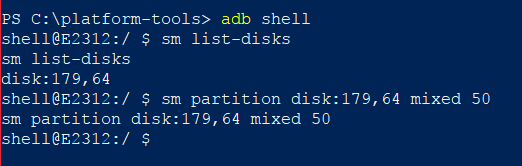
adb shell
sm list-disks
This command will output disk:179,64 representing your SD card ID.
sm partition disk:179,64 mixed 50The number 50 means using 50% of the SD card capacity as internal storage for app installation.
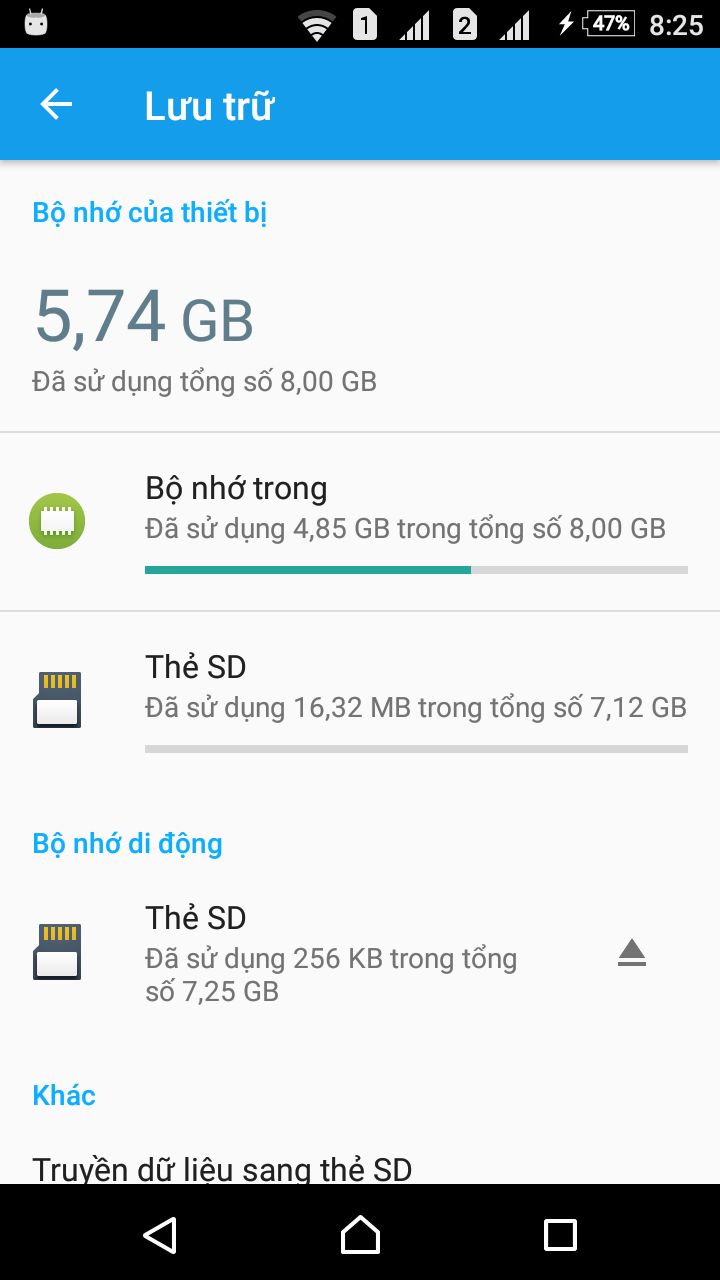
As shown above, a 16GB SD card is divided into 2 partitions. The SD Card internal partition uses ext4 formatting, so plugging it into a Windows computer won't display this partition.
Move Applications to the Newly Created SD Partition
By default, apps that support SD card storage will automatically install to the SD card partition you just configured.
If your device is rooted, go to Settings > Apps: Select an app > Tap Storage. Choose Change > SD Card. The app will be moved 100% to the SD card.
Recommended model to apply this: Sony Xperia M4 Aqua