Normally I save passwords in Chrome so I don't need to memorize them. Recently while clearing browser cache, saved Chrome passwords were removed and I forgot my WordPress admin password. Here are several methods to recover it.
Standard Methods when Forgot WordPress Admin Password
Method 1: If your site is linked with WordPress.com, your wp-admin screen will display a Log in with WordPress.com button. Click it to log in with your connected account.
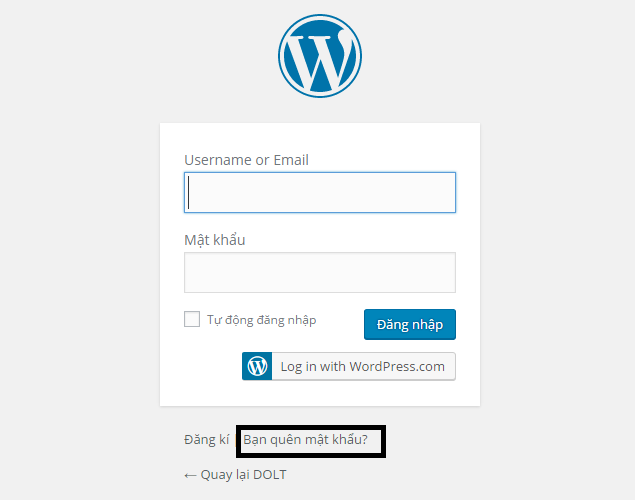
Method 2: Click "Lost your password?", enter your email or username, and submit. A reset link will be emailed to your inbox.
Resetting WordPress Admin Password via phpMyAdmin
If reset emails fail to arrive, use this direct database method.
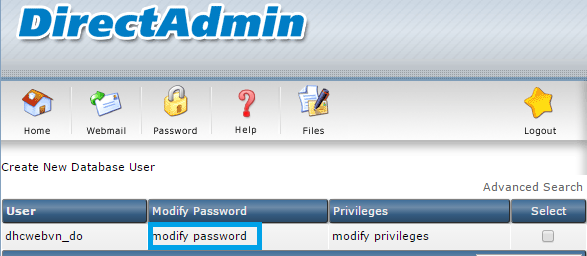
Log into hosting control panel and open phpMyAdmin. If you also forgot phpMyAdmin credentials, open MySQL Management, locate your database name, select modify password, set a new password and save.
After entering phpMyAdmin, select your target Database -> open table wp_users (table prefix varies depending on initial setup).
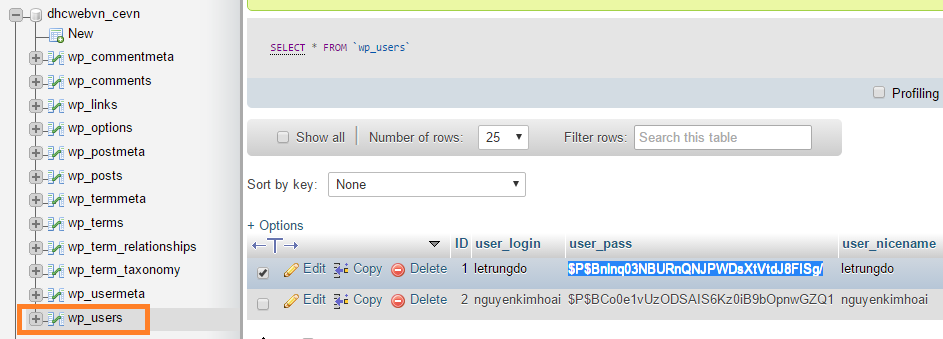
You will see column user_pass containing an encrypted MD5 hash.
Because MD5 is a one-way hash, you cannot reverse the hash back into plain text. WordPress hashes also incorporate salt parameters.
The solution is overwriting that hash string with a freshly hashed new password.
Many online tools convert plain text to MD5. Visit webtools/md5.php to convert your new password to MD5.
You can use this sample MD5 hash (for plain text password matkhau):
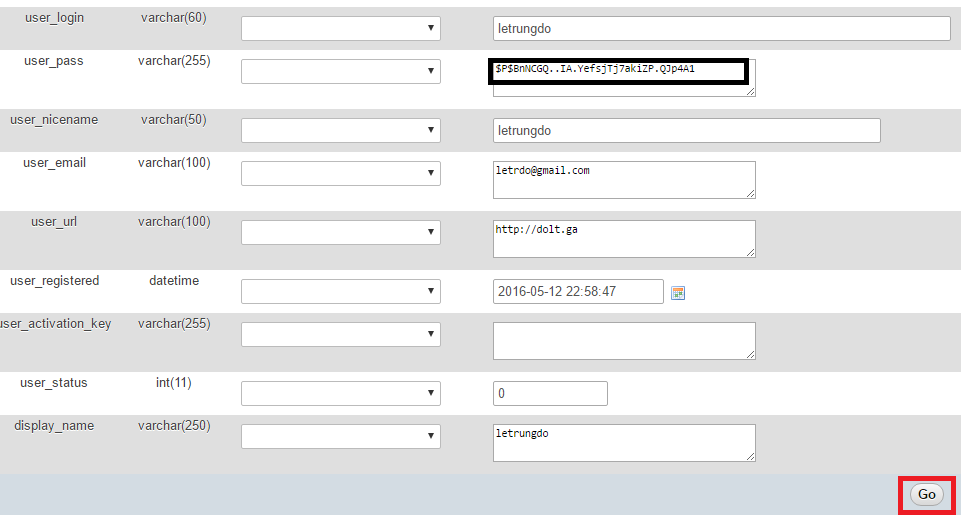
a788f6d55914857d4b97c1de99cb896bReturn to database table row, select Edit, paste the new MD5 hash string into user_pass, set function type to MD5 if available or paste direct hash, then click Go to save.
Finally, log into WordPress using your new password. Change it again inside WordPress user profile settings to re-salt the password properly.
Alternative: You can contact hosting support to assist in resetting admin credentials.