How can you check for bad sectors on a hard drive in the fastest way? Many applications can scan for bad sectors, but pinpointing bad areas traditionally takes a long time. If you suspect your hard drive has bad sectors or want to quickly test a used laptop's drive before purchase, here is the fastest hard drive bad sector checking utility.
Windows includes built-in Disk Check (chkdsk) - which scans your drive for bad sectors, marks them, and attempts repairs so sectors can be reused.
However, Disk Check does not quickly report overall hard drive SMART health status.
Fastest Bad Sector Checker Utility: CrystalDiskInfo 6.5
Download: CrystalDiskInfo
This utility evaluates hard drive health and bad sector warnings instantly. Opening the application displays drive status within 5 seconds.
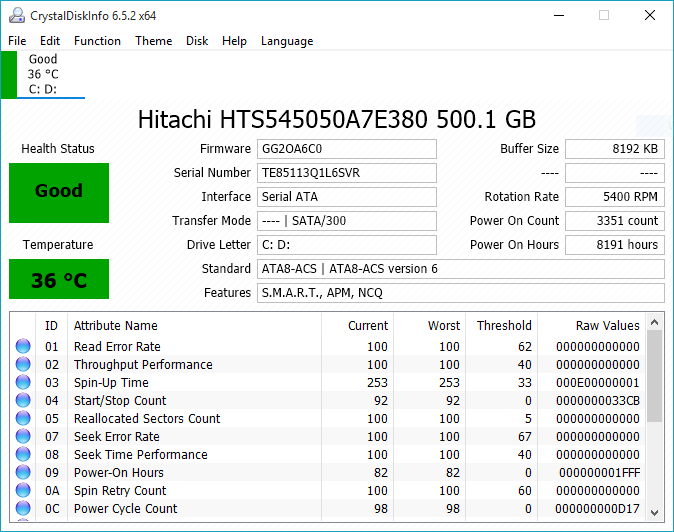
CrystalDiskInfo reports 4 status results:
- Good - Blue: Drive is healthy with no bad sectors.
- Caution - Yellow: Drive has errors or minor bad sectors that can be remapped/repaired with software.
- Bad - Red: Hard drive has severe bad sectors that software cannot repair; damaged partitions must be isolated.
- Gray - Gray: Status unknown.
This guide is extremely useful when buying used laptops; testing drive health with CrystalDiskInfo takes only 5 seconds.
Deep scanning tools like HDD Regenerator locate exact bad sector sector offsets, but scanning a full 500GB drive takes over 1.5 hours, making it impractical for quick inspections.
In future posts, I will guide you on repairing bad sectors and isolating damaged drive space to restore smooth operation without purchasing new drives.