When upgrading a WordPress theme, I attempted to remove the old theme directory before uploading the new update. However, deleting it failed both via WordPress dashboard and via DirectAdmin file manager, throwing the following error message:
|
Unable to delete files |
|
Details Unable to delete directory /domains/tđ.vn/public_html/wp-content/themes/glamour: The directory /domains/tđ.vn/public_html/wp-content/themes/glamour is not empty |
Simple Solution to Fix Theme Deletion Errors
Simply adjust file/directory permissions (perm) in your web hosting file manager.
Steps: Log into DirectAdmin, open File Manager, navigate to your website root directory.
Go to wp-content > themes
Locate the undeletable theme directory (glamour in this example).
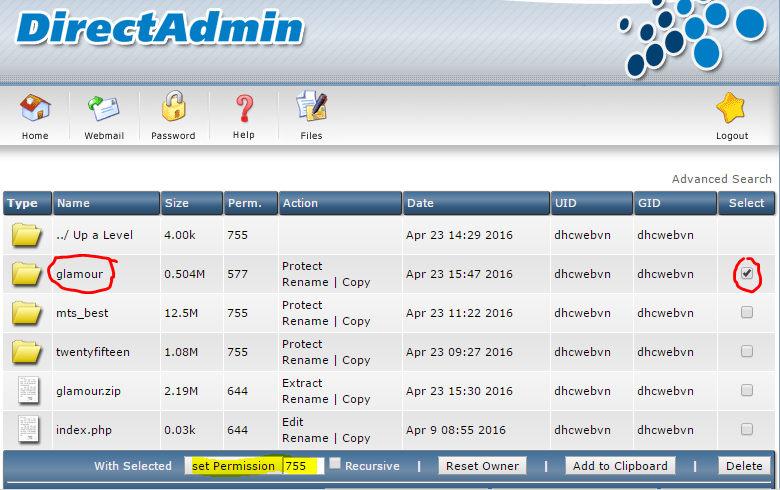
The theme folder permissions were set to 577, preventing file removal commands from executing.
Set permissions (Set Permission) back to default value 755.
Note: If sub-files still fail to delete, recursively apply 755 permission to all child subfolders and files inside the theme directory before deleting.
What is Perm / Permission?
Perm or Permission is commonly referred to as chmod.
Chmod configures access rights (read, write, execute) for files and directories on Linux web servers. Default recommended web host permissions are 644 for files and 755 for directories.
Permissions breakdown:
-
"Read": value
4 -
"Write": value
2 -
"Execute": value
1 -
User: File/directory owner
-
Group: User group
-
World / Others: Everyone else
Example: 755 permission for directories means:
7 = 4 + 2 + 1: Owner has Read, Write, and Execute rights.
5 = 4 + 0 + 1: Group members have Read and Execute rights.
5 = 4 + 0 + 1: Others have Read and Execute rights.