Wi-Fi Marketing is a form of advertising delivered through Wi-Fi networks. When connecting to the Wi-Fi, users are redirected to a webpage containing promotional images and content. To use the Wi-Fi, users must click on an ad or complete another form of sign-in... On standard consumer routers, manufacturer stock firmware lacks Wi-Fi Marketing capabilities. Therefore, this article will guide you on how to set up Wi-Fi Marketing for your modem/router.
Install OpenWrt Firmware on Router
OpenWrt firmware can be simply understood as an operating system managing the router with far more features than the manufacturer's original stock firmware.
Homepage: openwrt.org/
List of supported devices: wiki.openwrt.org/toh/start
Make sure to identify the exact name and hardware revision version of your router.
You can research the specific firmware installation steps for your device model.
Key points to remember:
OpenWrt firmware files ending with ...squashfs-factory.bin are used to upgrade from stock OEM firmware.
Files ending with ...squashfs-sysupgrade.bin are used to reinstall OpenWrt or upgrade from an existing OpenWrt firmware.
Note: Before flashing, shorten the filename to ensure the upgrade succeeds.
Example: Rename openwrt-15.05.1-ar71xx-generic-tl-wr941nd-v5-squashfs-factory.bin to factory.bin.
Setting Up Wi-Fi Marketing for Router
Install Nodogsplash
Nodogsplash is a software package that enables captive portal functionality for Wi-Fi login pages.
Install Nodogsplash via SSH as follows:
Download PuTTY to execute SSH commands here: chiark.greenend.org.uk/~sgtatham/putty/latest.html
Open PuTTY and enter the router hostname/IP address, usually 192.168.1.1.
Select connection type as SSH > Open.
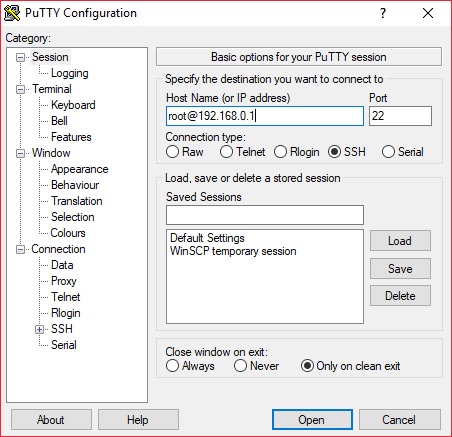
After logging in with your password, you will see the terminal prompt as shown below.
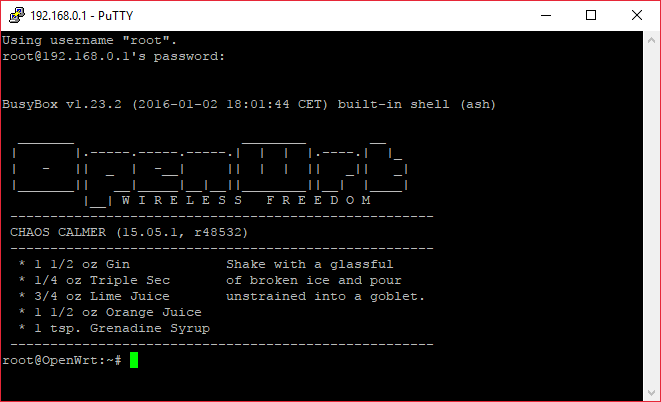
To install Nodogsplash, enter each command line sequentially and press Enter:
opkg update
opkg install nodogsplash
Common Nodogsplash Commands:
- Enable Nodogsplash to run on router boot:
/etc/init.d/nodogsplash enable- Edit Nodogsplash configuration settings:
vim /etc/nodogsplash/nodogsplash.conf- Start Nodogsplash:
/etc/init.d/nodogsplash start- Stop Nodogsplash:
/etc/init.d/nodogsplash stop- Uninstall Nodogsplash:
opkg remove nodogsplash- Check Nodogsplash status:
ndsctl statusConfigure Nodogsplash {#nodogsplash_configuration_file}
Older versions use /etc/nodogsplash/nodogsplash.conf.
Version 0.9_beta9.9.9-5 on Chaos Calmer 15.05 uses /etc/config/nodogsplash.
You can use the old configuration by uncommenting (removing # before the line):
#option config '/etc/nodogsplash/nodogsplash.conf' and copying a sample nodogsplash.conf file from here to customize as needed.
Fixing "nodogsplash probably not started (Error: No such file or directory)"
You can download WinSCP to access the router file system via SFTP/SCP to edit internal files.
Select File Protocol as SCP, enter hostname, username, and password. Click Save then Login.
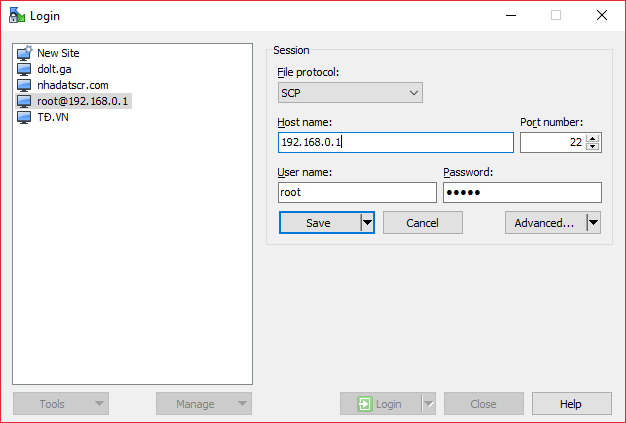
Navigate to directory /etc/config, open file nodogsplash and locate this line:
# Set to 1 to enable nodogsplash
option enabled 0
Change option enabled 0 to option enabled 1 and save.
Customizing Wi-Fi Marketing Interface
Navigate to directory /etc/nodogsplash/htdocs to customize .html layout files as desired.
Note: Nodogsplash uses a minimal built-in web server that does not serve local CSS/JS files inside /etc/nodogsplash/htdocs/.
Place custom JS and CSS in directory /www/nodogsplash-static and adjust the nodogsplash.conf file in /etc/nodogsplash/ accordingly.
FirewallRuleSet preauthenticated-users: specifies allowed web services accessible before completing authentication on splash.html.
FirewallRule allow tcp port 80 to 192.168.0.1
Replace 192.168.1.1 with your router's actual IP address.
References: