The HTTPS protocol is now used by many websites for better information security and improved SEO. Currently, SSL certificates can be very expensive; installing a Let's Encrypt Certificate will give you free HTTPS forever.
To use the HTTPS protocol for a website, you can use Cloudflare's DNS, but its certificate is not supported on Windows XP. When accessing, the following error is displayed:
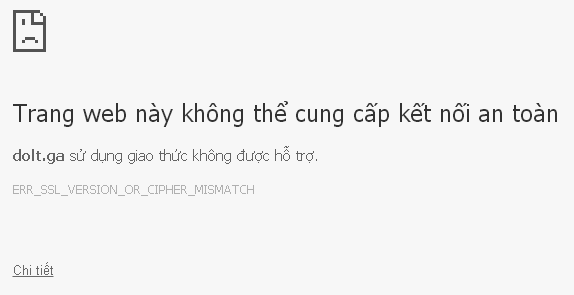
Therefore, the best alternative to Cloudflare HTTPS is the Let's Encrypt Certificate. This certificate is valid for 3 months, after which it can be renewed for continued use.
Preparation:
- 1 Linux-based operating system to run and generate the Let's Encrypt certificate: In this article, I will use Ubuntu 16.04 LTS installed on a VMWare virtual machine.
- 1 host using cPanel or DirectAdmin...: Your hosting must allow manual installation of SSL certificates.
- Access method to upload files to the server: I use SFTP.
Note: Some web hosts have integrated Let's Encrypt Certificates, so you don't need to follow the steps below; simply go to cPanel to activate it.
Here is a list of some hosting providers with built-in Let's Encrypt Certificate integration: Digistar.vn, DreamHost, Hawk Host, StableHost, SiteGround.
Installing Let's Encrypt Certificate
- Open terminal in Ubuntu and type:
git clone https://github.com/letsencrypt/letsencrypt- Type command:
cd letsencryptto navigate to the letsencrypt directory.
Generating the Let's Encrypt Certificate
Inside the letsencrypt directory, type:
./letsencrypt-auto certonly -a manual --rsa-key-size 4096 -d tđ.vn -d www.tđ.vnNote: Replace tđ.vn with your own website domain name.
When running the command above, it will prompt for password confirmation.
- To log your IP address, select Yes.
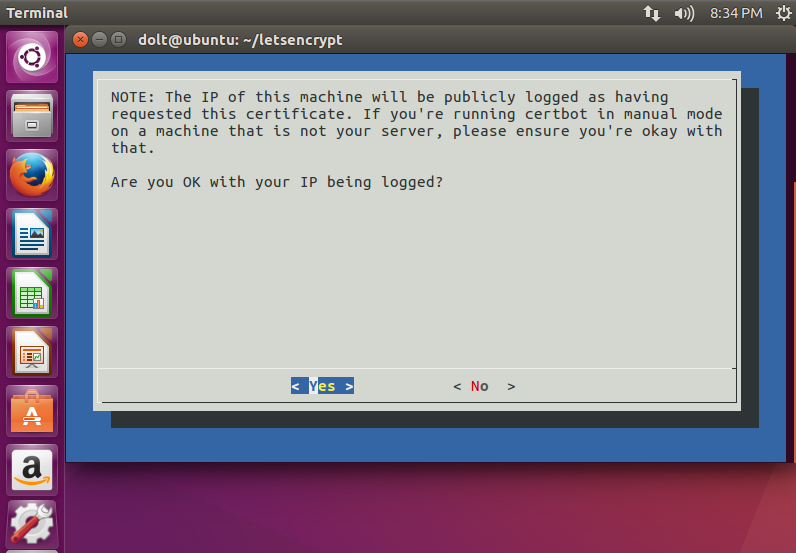
After selecting, the following lines will appear:
Make sure your web server displays the following content at
/.well-known/acme-challenge/VVGHpfFleFEuueHABqr9OcD2ZGfH4L4jRFWOSncsi90 before continuing:

VVGHpfFleFEuueHABqr9OcD2ZGfH4L4jRFWOSncsi90.OIJ_M0M1cYuFvxiH27g0JChuKjdZmxsV3g97nTZFUOw

If you don't have HTTP server configured, you can run the following
command on the target server (as root):

mkdir -p /tmp/certbot/public_html/.well-known/acme-challenge
cd /tmp/certbot/public_html
printf "%s" VVGHpfFleFEuueHABqr9OcD2ZGfH4L4jRFWOSncsi90.OIJ_M0M1cYuFvxiH27g0JChuKjdZmxsV3g97nTZFUOw
.well-known/acme-challenge/tto8T43hHvnZCk3pcPFcUNhp7-z3B07aoeWZmExO-nI

# run only once per server:

\$(command -v python2 || command -v python2.7 || command -v python2.6) -c \
"import BaseHTTPServer, SimpleHTTPServer; \
s = BaseHTTPServer.HTTPServer(('', 80), SimpleHTTPServer.SimpleHTTPRequestHandler); \
s.serve_forever()"
Press ENTER to continue
At this point, DO NOT press Enter yet. It requires uploading directories and files to your host as requested above to verify domain ownership.
Verifying Domain Ownership
-
Create directories in the root folder of your host as follows:
.well-known/acme-challenge -
Create a file named:
VVGHpfFleFEuueHABqr9OcD2ZGfH4L4jRFWOSncsi90
And the content inside the file should be:
VVGHpfFleFEuueHABqr9OcD2ZGfH4L4jRFWOSncsi90.OIJ_M0M1cYuFvxiH27g0JChuKjdZmxsV3g97nTZFUOwResult URL: <a href="/.well-known/acme-challenge/VVGHpfFleFEuueHABqr9OcD2ZGfH4L4jRFWOSncsi90" target="_blank" rel="noopener">/.well-known/acme-challenge/VVGHpfFleFEuueHABqr9OcD2ZGfH4L4jRFWOSncsi90</a>
Note: The filename and contents will differ for each domain; the above is just an example. The filename should not have any file extension.
- Once you have done that, return to terminal and press Enter. If successful, the following notification will appear:
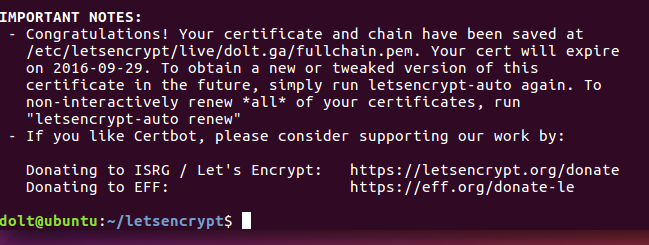
Obtaining the Let's Encrypt Certificate
Type:
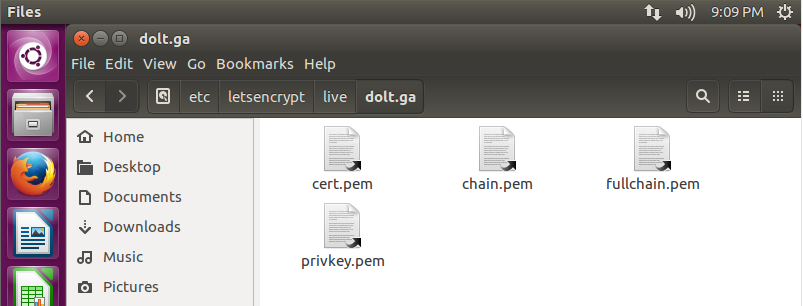
sudo nautilusUse the file manager to navigate to the following path: /etc/letsencrypt/live/tđ.vn
Installing Let's Encrypt in cPanel
Log into your cPanel. Copy and paste the SSL information from these files into the cPanel SSL control panel:
privkey.pem: Private Key, must never be shared with anyone else. This file is uploaded to the server as the encryption/decryption key.cert.pem: Certificate (CRT) SSL Certificate, used for Apache < 2.4.8chain.pem: Certificate Authority Bundle (CABUNDLE): Let's Encrypt Certificate, used for Apache < 2.4.8fullchain.pem: Contains all certificates, including Let's Encrypt and cert.pem. Used for Apache >= 2.4.8
You can use gedit to open and copy the contents of the .pem files: Right-click and choose Open With Other App...
Tip: Redirect HTTP to HTTPS
Add the following lines to your .htaccess file:
# BEGIN Force SSL
# This should be the first rule before other rules
<IfModule mod_rewrite.c>
RewriteEngine On
RewriteCond %{HTTPS} !=on
RewriteRule ^/?(.\*) https://%{SERVER_NAME}/$1 [R,L]
</IfModule>

# END Force SSLUpdate: Currently, there are online tools that make getting a Let's Encrypt certificate extremely simple.
Link: sslforfree.com