You receive too much spam and promotional mail. Because of registering accounts online, manually unsubscribing from every single email newsletter takes a lot of time. Unroll.me is a free online service offering mass newsletter unsubscription in Gmail. However, Amit Agarwal reported that Unroll.me was quietly selling user Gmail data to Uber.
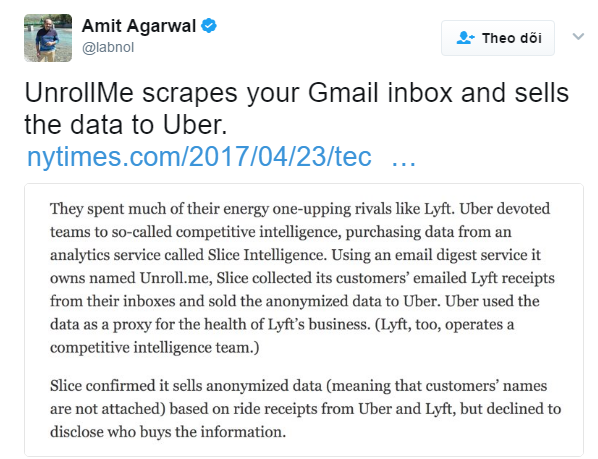
If this concerns you, here is a simple guide to safely mass unsubscribe from newsletters in Gmail.
Gmail Unsubscriber - Mass Unsubscribe Newsletters in Gmail
Source: Author: Amit Agarwal
This is a simple Google Script that analyzes email contents in bulk and extracts unsubscribe links. If an unsubscribe link is found, the script opens it and automatically unsubscribes your email address.
Step 1: Click here to copy Gmail Unsubscriber to your Google Drive.
Step 2: Open Gmail Unsubscriber in Google Sheets and select Configure.
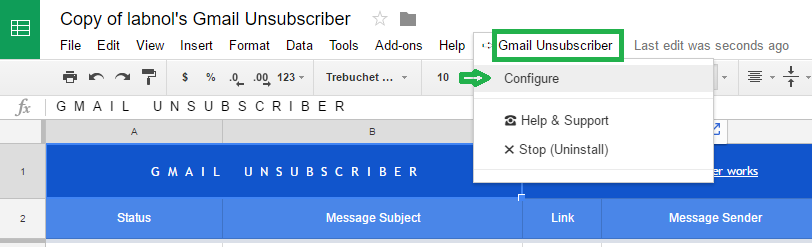
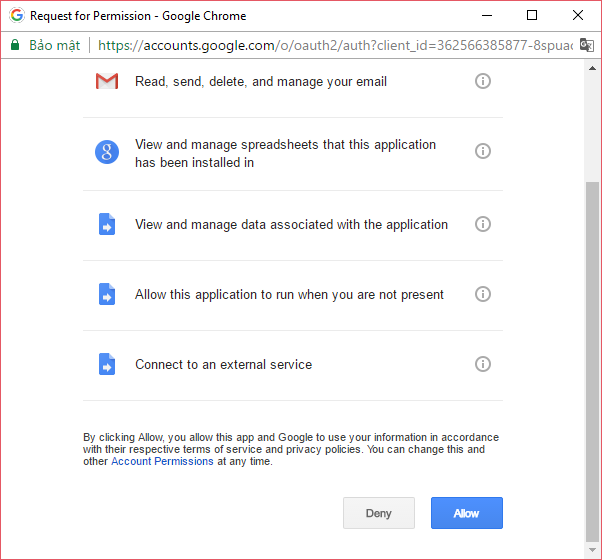
Authorize the script to access your Gmail account.
Step 3: Go to your Gmail Inbox and create a new Gmail label matching the label name set in Step 2 (default is Unsubscribe).
How to create a label: Go to mail.google.com/mail/u/0/#settings/labels, click Create new label, name the label Unsubscribe => Create.
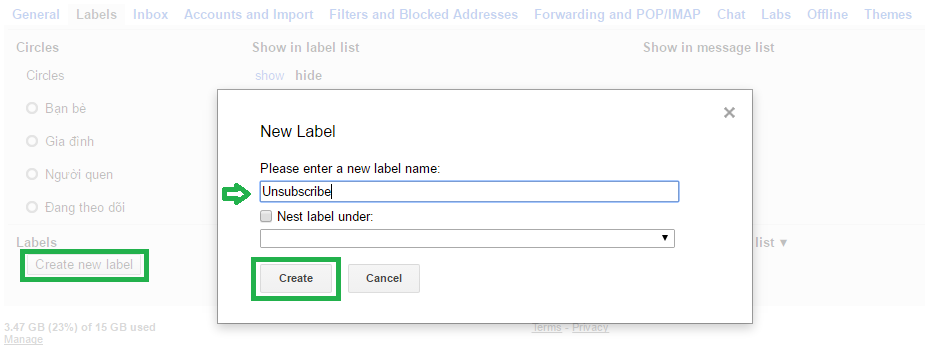
All emails tagged with this label will automatically be unsubscribed within 10-15 minutes.
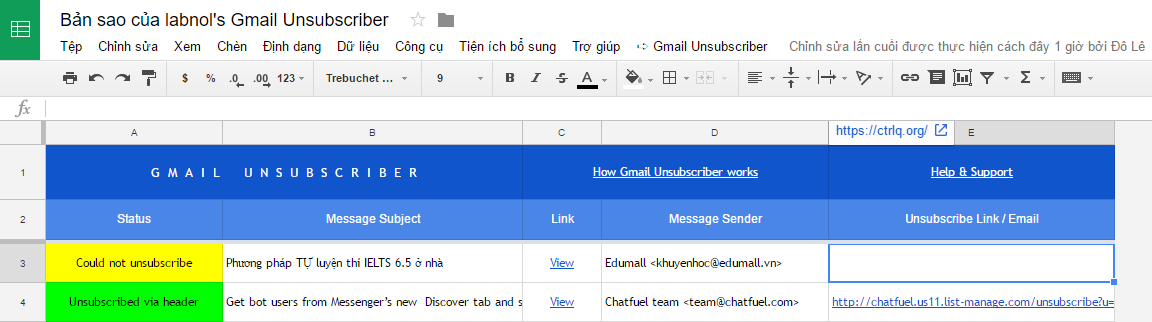
Results will be logged directly inside the Google Sheet file you copied in Step 1.
Pros: Complete privacy without data theft risks.
Cons: Some newsletters without standardized unsubscribe links cannot be processed automatically.